Show toolbar
顯示具有 C# 標籤的文章。 顯示所有文章

2014年3月26日 星期三

C# POST using WebRequest

標題:C#使用WebRequest POST後取得回傳資料
C# (Program.cs):
using System;
using System.Collections.Generic;
using System.Linq;
using System.Text;
using System.Net; //WebRequest WebResponse
using System.IO; //Stream

public class Global
{
    public static string server = "http://127.0.0.1:1337";
}

namespace WebPostRequest
{
    class Program
    {
        static string login(string email, string password)
        {
            //宣告送出資料
            string param = "email=" + email + "&password=" + password;
            byte[] byteArray = Encoding.UTF8.GetBytes(param);

            //Request資料
            WebRequest request = WebRequest.Create(Global.server + "/login");
            request.Credentials = CredentialCache.DefaultCredentials;
            ((HttpWebRequest)request).UserAgent = ".NET Framework Example Client";
            request.Method = "POST";
            request.ContentLength = byteArray.Length;
            request.ContentType = "application/x-www-form-urlencoded";

            //處理資料流
            Stream dataStream = request.GetRequestStream();
            dataStream.Write(byteArray, 0, byteArray.Length);
            dataStream.Close();

            //Response資料
            WebResponse response = request.GetResponse();
            string rawJsonString = new StreamReader(response.GetResponseStream()).ReadToEnd();
            response.Close();

            return rawJsonString;
        }

        static void Main(string[] args)
        {
            Console.WriteLine( login("test@gmail.com", "abcd1234") );

            Console.WriteLine("\r\nPress enter key to continue....");
            Console.Read();
        }
    }
}

說明:
簡單使用WebRequest POST送出email、password後回傳字串資料的作法。

2013年1月31日 星期四

C# Multi List

標題:C#多維List寫法
C# (Program.cs):
using System;
using System.Collections.Generic;

namespace MultiList
{
    class Program
    {
        static void Main(string[] args)
        {
            //建立一維List
            List<String> titles = new List<String>() {
                "ChatBoxy",
                "CodeBoxy",
                "ToolBoxy"
            };

            //建立一維List
            List<String> websites = new List<String>() {
                "http://chatboxy.blogspot.com/",
                "http://codeboxy.blogspot.com/",
                "http://toolboxy.blogspot.com/"
            };
            
            //建立多維List關係
            List<List<String>> options = new List<List<String>> {
                titles,
                websites
            };

            //新增QQBoxy資料
            titles.Add("QQBoxy");
            websites.Add("http://qqboxy.blogspot.com/");

            //移除ChatBoxy資料
            titles.Remove("ToolBoxy");
            websites.Remove("http://toolboxy.blogspot.com/");

            //移除第0筆資料
            titles.RemoveAt(0);
            websites.RemoveAt(0);

            //印出資料
            foreach (List<String> value in options)
            {
                foreach (var v in value)
                {
                    Console.WriteLine(v);
                }
            }
        }
    }
}

結果:


說明:
C#多維List新增移除資料後印出內容。

C# WPF Confirm Options

標題:使用ShowDialog顯示Confirm視窗並回傳RadioButton的Option名稱
XAML (MainWindow.xaml):
<Window x:Class="WPFConfirmOptions.MainWindow"
        xmlns="http://schemas.microsoft.com/winfx/2006/xaml/presentation"
        xmlns:x="http://schemas.microsoft.com/winfx/2006/xaml"
        Title="MainWindow" Height="100" Width="200">
    <Grid>
        <Button Content="Confirm Option" Name="confirmBtn" Click="confirmBtn_Click" />
    </Grid>
</Window>

C# (MainWindow.xaml.cs):
using System;
using System.Windows;
using System.Collections.Generic; //List

namespace WPFConfirmOptions
{
    /// <summary>
    /// Interaction logic for MainWindow.xaml
    /// </summary>
    public partial class MainWindow : Window
    {
        public MainWindow()
        {
            InitializeComponent();
        }

        private void confirmBtn_Click(object sender, RoutedEventArgs e)
        {
            var options = new List<Confirm.Option>();
            options.Add(new Confirm.Option
            {
                Name = "Test1",
                Description = "Test Description 1."
            });
            options.Add(new Confirm.Option
            {
                Name = "Test2",
                Description = "Test Description 2."
            });
            options.Add(new Confirm.Option
            {
                Name = "Test3",
                Description = "Test Description 3."
            });
            options.Add(new Confirm.Option
            {
                Name = "Test4",
                Description = "Test Description 4."
            });
            options.Add(new Confirm.Option
            {
                Name = "Test5",
                Description = "Test Description 5."
            });
            Confirm confirm = new Confirm("Confirm", "Hello World", options);
            confirm.ShowDialog();
            if (confirm.DialogResult.HasValue && confirm.DialogResult.Value)
            {
                System.Windows.MessageBox.Show(confirm.CheckedName.ToString());
            }
        }
    }
}

XAML (Confirm.xaml):
<Window x:Class="WPFConfirmOptions.Confirm"
        xmlns="http://schemas.microsoft.com/winfx/2006/xaml/presentation"
        xmlns:x="http://schemas.microsoft.com/winfx/2006/xaml"
        Name="Windows" Title="Confirm" Height="230" Width="300">
    <Grid>
        <TextBlock Height="20" HorizontalAlignment="Center" Margin="0,10,0,0" Name="tbk_StlTypeTitle" Text="Confirm" VerticalAlignment="Top" Width="120" TextAlignment="Center" />
        <GroupBox Header="Options" Margin="0,30,0,50" Name="gbx">
            <Grid Name="OptionsGrid"></Grid>
        </GroupBox>
        <Grid Height="50" Width="240" HorizontalAlignment="Center" VerticalAlignment="Bottom">
            <Button Content="OK" Height="30" Width="100" Name="btn_OK" VerticalAlignment="Center" HorizontalAlignment="Left" Click="btn_OK_Click" />
            <Button Content="Cancel" Height="30" Width="100" Name="btn_Cancel" VerticalAlignment="Center" HorizontalAlignment="Right" Click="btn_Cancel_Click" />
        </Grid>
    </Grid>
</Window>

C# (Confirm.xaml.cs):
using System;
using System.Windows;
using System.Windows.Controls;
using System.Collections.Generic; //List
using System.Linq;

namespace WPFConfirmOptions
{
    /// <summary>
    /// Interaction logic for StlTypeConfirm.xaml
    /// </summary>
    public partial class Confirm : Window
    {
        public Confirm(string header, string message, List<Option> options)
        {
            InitializeComponent();
            this.Header = header;
            this.Message = message;
            this.Options = options;
            AddRadioButton();
        }

        public string Header //Set Head Title
        {
            set
            {
                Windows.Title = value;
            }
        }

        public string Message //Set Content Description
        {
            set
            {
                tbk_StlTypeTitle.Text = value;
            }
        }

        public List<Option> Options;

        public String CheckedName = "";

        public String ResultName
        {
            get
            {
                return CheckedName;
            }
        }

        public class Option
        {
            public string Name { get; set; }
            public string Description { get; set; }
        }

        public void AddRadioButton()
        {
            int key = 0;
            foreach (Option value in Options) // Create Options
            {
                RadioButton radioButton = new RadioButton();
                radioButton.Name = value.Name;
                radioButton.Content = value.Description;
                radioButton.Height = 20;
                radioButton.Width = 250;
                radioButton.Margin = new Thickness(0, (20 + 30 * key), 0, 0);
                radioButton.HorizontalAlignment = HorizontalAlignment.Center;
                radioButton.VerticalAlignment = VerticalAlignment.Top;
                radioButton.IsChecked = false;
                this.OptionsGrid.Children.Add(radioButton);
                this.RegisterName(radioButton.Name, radioButton);
                key++;
            }
            Windows.Height = 200 + 30 * key;
            return;
        }

        private void btn_OK_Click(object sender, RoutedEventArgs e)
        {
            foreach (Option value in Options)
            {
                RadioButton radiobutton = (RadioButton)OptionsGrid.FindName(value.Name);
                if (radiobutton.IsChecked == true)
                {
                    CheckedName = radiobutton.Name;
                    DialogResult = true;
                    return;
                }
            }
            System.Windows.MessageBox.Show("No Select.");
        }

        private void btn_Cancel_Click(object sender, RoutedEventArgs e)
        {
            DialogResult = false;
            return;
        }
    }
}

結果:

說明:
使用Add Window方式設計WPF Confirm視窗, 主視窗可設定加入多組選項包含名稱及描述, 並在ShowDialog後的Confirm視窗產生標題、說明及選項, 最後按下確認回傳RadioButton的Option名稱。

2013年1月30日 星期三

CSharp Goes to

標題:C#使用goes to(=>)(等於大於)語法範例
C# (Program.cs):
using System;
using System.Linq;

namespace GoesTo
{
    class Program
    {
        static void Main(string[] args)
        {
            string[] words = { "Welcome", "to", "CodeBoxy" };
            string shortestWord = words.OrderBy(w => w.Length).FirstOrDefault(); //Find shortest word
            int shortestWordLength = words.Min(w => w.Length); //Find the length of the shortest word
            Console.WriteLine(shortestWord + "\n" + shortestWordLength);
        }
    }
}

結果:


說明:
簡單使用goes to(=>)搜尋字串長度最小值。

2013年1月25日 星期五

C# Regex Double Backslash

標題:C#使用雙反斜線表示特殊字元
C# (Main.cs):
Regex solidVcg = new Regex("^\\s*solid\\svcg$");

說明:
在C#撰寫特殊字元如\s時,
若只有一個反斜線Visual Studio C#會報錯,
如下圖:

這時候必須使用雙反斜線來表示就能正常執行。

2013年1月24日 星期四

C# WPF Using List

標題:C# WPF使用List功能
C# (MainWindow.xaml.cs):
using System;
using System.Windows;

namespace WPFVectorList
{
    /// <summary>
    /// Interaction logic for MainWindow.xaml
    /// </summary>
    public partial class MainWindow : Window
    {
        public MainWindow()
        {
            InitializeComponent();
        }

        public System.Collections.Generic.List<int> arr = new System.Collections.Generic.List<int>();

        private void btn_show_Click(object sender, RoutedEventArgs e)
        {
            tbk.Text = "";
            foreach (int i in arr)
            {
                tbk.Text += i + "\n";
            }
        }

        private void btn_add_Click(object sender, RoutedEventArgs e)
        {
            arr.Add(Int32.Parse(tbx.Text));
        }
    }
}

WPF (MainWindow.xaml):
<Window x:Class="WPFVectorList.MainWindow"
        xmlns="http://schemas.microsoft.com/winfx/2006/xaml/presentation"
        xmlns:x="http://schemas.microsoft.com/winfx/2006/xaml"
        Title="MainWindow" Height="350" Width="525">
    <Grid>
        <TextBlock Margin="12,12,12,65" Name="tbk" />
        <Button Content="ADD" Height="40" HorizontalAlignment="Left" Margin="118,259,0,0" Name="btn_add" VerticalAlignment="Top" Width="100" Click="btn_add_Click" />
        <Button Content="Show" Height="40" HorizontalAlignment="Left" Margin="224,0,0,12" Name="btn_show" VerticalAlignment="Bottom" Width="100" Click="btn_show_Click" />
        <TextBox Height="40" HorizontalAlignment="Left" Margin="12,0,0,12" Name="tbx" VerticalAlignment="Bottom" Width="100" Text="1" />
    </Grid>
</Window>

說明:
在C# WPF使用System.Collections.Generic的List實現在陣列Push新值的功能。

MSDN:
http://msdn.microsoft.com/en-us/library/6sh2ey19.aspx

2012年12月3日 星期一

C# WPF RegEx Check Number

標題:使用RegEx進行數字比對
C# (MainWindow.xaml.cs):
using System;
using System.Windows;
using System.Text.RegularExpressions; //RegEx

namespace WPFRegEx {
    public partial class MainWindow : Window {
        public MainWindow() {
            InitializeComponent();
        }
        public void CheckRegEx(string text) {
            Regex regex = new Regex("^[0-9]+$"); //建立RegEx規則
            Match result = regex.Match(text); //字串比對
            if (result.Success) {
                System.Windows.MessageBox.Show("True");
            } else {
                System.Windows.MessageBox.Show("False");
            }
        }
        private void btn_Click(object sender, RoutedEventArgs e) {
            CheckRegEx(tbx.Text);
        }
    }
}
WPF (MainWindow.xaml.cs):
<Window x:Class="WPFRegEx.MainWindow"
        xmlns="http://schemas.microsoft.com/winfx/2006/xaml/presentation"
        xmlns:x="http://schemas.microsoft.com/winfx/2006/xaml"
        Title="MainWindow" Height="350" Width="525">
    <Grid>
        <TextBox Height="30" Margin="20,20,20,0" Name="tbx" VerticalAlignment="Top" />
        <Button Content="Button" Height="30" Margin="20,70,20,0" Name="btn" VerticalAlignment="Top" Click="btn_Click" />
    </Grid>
</Window>

範例結果:


說明:
在C# WPF使用RegEx判斷字串是否為數字之基礎範例。

2012年11月5日 星期一

C# WPF Call VC++ DLL

標題:C# WPF呼叫C++ DLL動態函式庫
C++ (CppDLL.h):
#pragma once
using namespace System;

namespace CppDLL {
    public ref class MyClass
    {
        public:
        int Multiply(int x, int y)
        {
            return x * y;
        }
    };
}

WPF (MainWindow.xaml):
<Window x:Class="CSharpCaller.MainWindow"
        xmlns="http://schemas.microsoft.com/winfx/2006/xaml/presentation"
        xmlns:x="http://schemas.microsoft.com/winfx/2006/xaml"
        Title="MainWindow" Height="350" Width="525">
    <Grid>
        <Button Content="Click Me" Height="30" HorizontalAlignment="Left" Margin="20,20,0,0" Name="btn" VerticalAlignment="Top" Width="100" Click="btn_Click" />
        <TextBlock Height="30" HorizontalAlignment="Left" Margin="20,70,0,0" Name="tbk" Text="Show up here" VerticalAlignment="Top" Width="100" />
    </Grid>
</Window>

C# (MainWindow.xaml.cs):
using System;
using System.Collections.Generic;
using System.Linq;
using System.Text;
using System.Windows;
using System.Windows.Controls;
using System.Windows.Data;
using System.Windows.Documents;
using System.Windows.Input;
using System.Windows.Media;
using System.Windows.Media.Imaging;
using System.Windows.Navigation;
using System.Windows.Shapes;

namespace CSharpCaller
{
    /// <summary>
    /// Interaction logic for MainWindow.xaml
    /// </summary>
    public partial class MainWindow : Window
    {
        public MainWindow()
        {
            InitializeComponent();
        }
        private void btn_Click(object sender, RoutedEventArgs e)
        {
            CppDLL.MyClass test = new CppDLL.MyClass();
            tbk.Text = test.Multiply(2, 4).ToString();
        }
    }
}

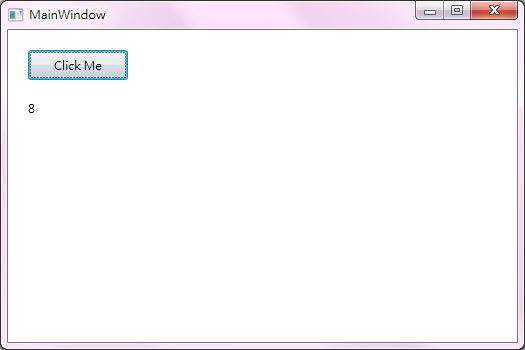
結果:

說明:
使用C# WPF呼叫C++函式庫進行乘法運算的簡單範例,
建立Visual C++ CLR Class Library專案,編譯DLL函式庫,
建立Visual C# WPF Application專案,加入References的DLL檔案,
編譯後即可執行。

2012年10月12日 星期五

Matrix Multiplied

標題:n階矩陣相乘
C# (MainWindow.xaml.cs):
using System;
using System.Collections.Generic;
using System.Linq;
using System.Text;
using System.Windows;
using System.Windows.Controls;
using System.Windows.Data;
using System.Windows.Documents;
using System.Windows.Input;
using System.Windows.Media;
using System.Windows.Media.Imaging;
using System.Windows.Navigation;
using System.Windows.Shapes;

namespace matrix_multiplied
{
    /// <summary>
    /// Interaction logic for MainWindow.xaml
    /// </summary>
    public partial class MainWindow : Window
    {
        public int ma = 0;
        public int na = 0;
        public int mb = 0;
        public int nb = 0;
        public MainWindow()
        {
            InitializeComponent();
        }
        public void CreateMatrix()
        {
            int m = 0, n = 0;
            
            //Clear virtual Matrix
            this.MatrixGrid.Children.Clear();
            for (m = 0; m < ma; m++)
                for (n = 0; n < na; n++)
                    this.UnregisterName("MA_" + m.ToString() + "_" + n.ToString());
            for (m = 0; m < mb; m++)
                for (n = 0; n < nb; n++)
                    this.UnregisterName("MB_" + m.ToString() + "_" + n.ToString());

            //Create Matrix A B Textbox
            ma = Convert.ToInt32(mA.Text);
            na = Convert.ToInt32(nA.Text);
            mb = Convert.ToInt32(mB.Text);
            nb = Convert.ToInt32(nB.Text);
            if (na != mb) //Check Matrix
            {
                MessageBox.Show("Can't do the Multiplication!!");
            }
            else
            {
                //Create Matrix A
                for (m = 0; m < ma; m++)
                {
                    for (n = 0; n < na; n++)
                    {
                        TextBox newtbx = new TextBox();
                        newtbx.Name = "MA_" + m.ToString() + "_" + n.ToString();
                        newtbx.Text = "1.0";
                        newtbx.VerticalAlignment = VerticalAlignment.Top;
                        newtbx.HorizontalAlignment = HorizontalAlignment.Left;
                        newtbx.Margin = new Thickness((10 + 40 * n), (10 + 40 * m), 0, 0);
                        newtbx.Width = 30;
                        newtbx.Height = 30;
                        this.MatrixGrid.Children.Add(newtbx);
                        this.RegisterName(newtbx.Name, newtbx);
                    }
                }

                //Add multiply symbol
                TextBlock newtbk = new TextBlock();
                newtbk.Name = "Multiply";
                newtbk.Text = "×";
                newtbk.Margin = new Thickness((15 + 40 * na), (20 * ma), 0, 0);
                this.MatrixGrid.Children.Add(newtbk);

                //Create Matrix B
                for (m = 0; m < mb; m++)
                {
                    for (n = 0; n < nb; n++)
                    {
                        TextBox newtbx = new TextBox();
                        newtbx.Name = "MB_" + m.ToString() + "_" + n.ToString();
                        newtbx.Text = "1.0";
                        newtbx.VerticalAlignment = VerticalAlignment.Top;
                        newtbx.HorizontalAlignment = HorizontalAlignment.Left;
                        newtbx.Margin = new Thickness((40 + 40 * (n + na)), (10 + 40 * m), 0, 0);
                        newtbx.Width = 30;
                        newtbx.Height = 30;
                        this.MatrixGrid.Children.Add(newtbx);
                        this.RegisterName(newtbx.Name, newtbx);
                    }
                }
            }
        }

        public void DetermineMatrix()
        {
            int m = 0, n = 0, i=0;
            Double sum = 0;
            Double[,] MaArray = new Double[ma, na];
            Double[,] MbArray = new Double[mb, nb];
            Double[,] McArray = new Double[ma, nb];
            
            //Get Number
            for (m = 0; m < ma; m++)
            {
                for (n = 0; n < na; n++)
                {
                    TextBox MA = (TextBox)MatrixGrid.FindName("MA_" + m.ToString() + "_" + n.ToString());
                    MaArray[m, n] = (Double)Convert.ToDouble(MA.Text);
                }
            }
            for (m = 0; m < mb; m++)
            {
                for (n = 0; n < nb; n++)
                {
                    TextBox MB = (TextBox)MatrixGrid.FindName("MB_" + m.ToString() + "_" + n.ToString());
                    MbArray[m, n] = (Double)Convert.ToDouble(MB.Text);
                }
            }

            //Determine Matrix
            for (m = 0; m < ma; m++)
            {
                for (n = 0; n < nb; n++)
                {
                    sum = 0.0;
                    for (i = 0; i < mb; i++)
                    {
                        sum += MaArray[m,i] * MbArray[i,n];
                    }
                    McArray[m,n] = sum;
                }
            }

            //Add equal symbol
            TextBlock newtbk = new TextBlock();
            newtbk.Name = "Anser";
            newtbk.Text = "=";
            newtbk.Margin = new Thickness((50 + 40 * (na + nb)), (20 * ma), 0, 0);
            this.MatrixGrid.Children.Add(newtbk);

            //Create Matrix C
            for (m = 0; m < ma; m++)
            {
                for (n = 0; n < nb; n++)
                {
                    sum = 0.0;
                    for (i = 0; i < mb; i++)
                    {
                        TextBox newtbx = new TextBox();
                        newtbx.Name = "MC" + m.ToString() + "_" + n.ToString();
                        newtbx.Text = Convert.ToString(McArray[m,n]);
                        newtbx.VerticalAlignment = VerticalAlignment.Top;
                        newtbx.HorizontalAlignment = HorizontalAlignment.Left;
                        newtbx.Margin = new Thickness((70 + 40 * (n + na + nb)), (10 + 40 * m), 0, 0);
                        newtbx.Width = 30;
                        newtbx.Height = 30;
                        this.MatrixGrid.Children.Add(newtbx);
                    }
                }
            }
        }

        private void CreateMatrix_Click(object sender, RoutedEventArgs e)
        {
            CreateMatrix();
        }

        private void DetermineMatrix_Click(object sender, RoutedEventArgs e)
        {
            DetermineMatrix();
        }
    }
}
WPF (MainWindow.xaml):
<Window x:Class="matrix_multiplied.MainWindow"
        xmlns="http://schemas.microsoft.com/winfx/2006/xaml/presentation"
        xmlns:x="http://schemas.microsoft.com/winfx/2006/xaml"
        Title="MainWindow" Height="600" Width="600">
    <Grid>
        <TextBlock Height="30" HorizontalAlignment="Left" Margin="20,20,0,0" Name="MatrixATitle" Text="Matrix A" VerticalAlignment="Top" Width="122" TextAlignment="Left" />
        <TextBlock Height="30" HorizontalAlignment="Left" Margin="20,50,0,0" Name="textBlock1" Text="m:" VerticalAlignment="Top" Width="20" DataContext="{Binding}" TextAlignment="Left" />
        <TextBlock Height="30" HorizontalAlignment="Left" Margin="90,50,0,0" Name="textBlock2" Text="n:" VerticalAlignment="Top" Width="20" DataContext="{Binding}" TextAlignment="Left" />
        <TextBox Height="30" Margin="40,50,0,0" Name="mA" VerticalAlignment="Top" Text="4" HorizontalAlignment="Left" Width="30" />
        <TextBox Height="30" Margin="110,50,0,0" Name="nA" VerticalAlignment="Top" Text="4" HorizontalAlignment="Left" Width="30" />
        
        <TextBlock Height="30" HorizontalAlignment="Left" Margin="180,20,0,0" Name="MatrixBTitle" Text="Matrix B" VerticalAlignment="Top" Width="122" TextAlignment="Left" />
        <TextBlock Height="30" HorizontalAlignment="Left" Margin="180,50,0,0" Name="textBlock3" Text="m:" VerticalAlignment="Top" Width="20" DataContext="{Binding}" TextAlignment="Left" />
        <TextBlock Height="30" HorizontalAlignment="Left" Margin="250,50,0,0" Name="textBlock4" Text="n:" VerticalAlignment="Top" Width="20" DataContext="{Binding}" TextAlignment="Left" />
        <TextBox Height="30" Margin="200,50,0,0" Name="mB" VerticalAlignment="Top" Text="4" HorizontalAlignment="Left" Width="30" />
        <TextBox Height="30" Margin="270,50,0,0" Name="nB" VerticalAlignment="Top" Text="1" HorizontalAlignment="Left" Width="30" />

        <Button Content="Create Matrix" Height="30" Margin="340,50,0,0" Name="CreateMatrixBtn" VerticalAlignment="Top" HorizontalAlignment="Left" Width="100" Click="CreateMatrix_Click" />
        <Button Content="Determine" Height="30" Margin="460,50,0,0" Name="DetermineMatrixBtn" VerticalAlignment="Top" HorizontalAlignment="Left" Width="100" Click="DetermineMatrix_Click" />
        
        <Grid Margin="10,100,10,10" Name="MatrixGrid" HorizontalAlignment="Stretch">
        </Grid>
    </Grid>
</Window>

結果:

說明:
使用WPF撰寫計算n階矩陣相乘印出結果。

首先按下Create Matrix按鈕虛擬建立需要的TextBox陣列數量,
再按下Determine去擷取經過RegisterName後的虛擬TextBox中的值,
並計算出矩陣相乘的結果後虛擬印出。